
A content calendar sounds like a “nice-to-have” until you’re juggling drafts in shared folders, approvals in email threads, and publish dates living in someone’s head. Then it becomes obvious: you don’t need more hustle-you need a simple system that makes the next action clear.
Thankfully, you can build a content calendar that actually works for a small marketing team using only Google Sheets. It’s quick to set up, easy to maintain, and collaborative by default, so you spend less time coordinating and more time shipping.
This guide keeps it practical. You’ll learn what to include, how to build a clean template in minutes, and how to run a lightweight weekly rhythm that keeps your calendar accurate.
Trust block: what makes this approach reliable
A Google Sheets content calendar works best when it’s simple enough to update daily and strict enough to prevent “version chaos.” The key is to treat the sheet as your SSOT-Single Source of Truth. Your SSOT is the one place your team agrees is “the truth” for content planning data: titles, dates, owners, statuses, and links.
In practice, the sheet holds planning facts and workflow signals. Your docs hold the writing. When you keep that separation, your calendar stays clean, your team stops duplicating work, and it becomes much easier to see what’s shipping next.
Quick Decision Guide: is a Google Sheets content calendar the right move?
Choose Google Sheets if you need real-time collaboration, simple sharing, and a lightweight workflow that a small team can keep current.
Choose Excel or a Microsoft-first setup if your organization requires Microsoft storage, you need strong offline-first work, or your IT policies limit Google sharing.
Choose a dedicated content management or project workflow system if you have heavy approvals, many stakeholders, lots of simultaneous channels, or a publishing volume where a spreadsheet starts to feel cramped.
If you’re unsure, start with Sheets for four weeks. If you outgrow it, you’ll still keep the same fields and workflow logic, and you can migrate later without losing the process.
What should be included in a content calendar for a small marketing team?
A useful content calendar includes only the fields that prevent confusion and keep work moving. The goal is not to track everything. The goal is to make it obvious what’s being published, where it’s going, who owns it, and what happens next.
Start with a minimum viable set of columns:
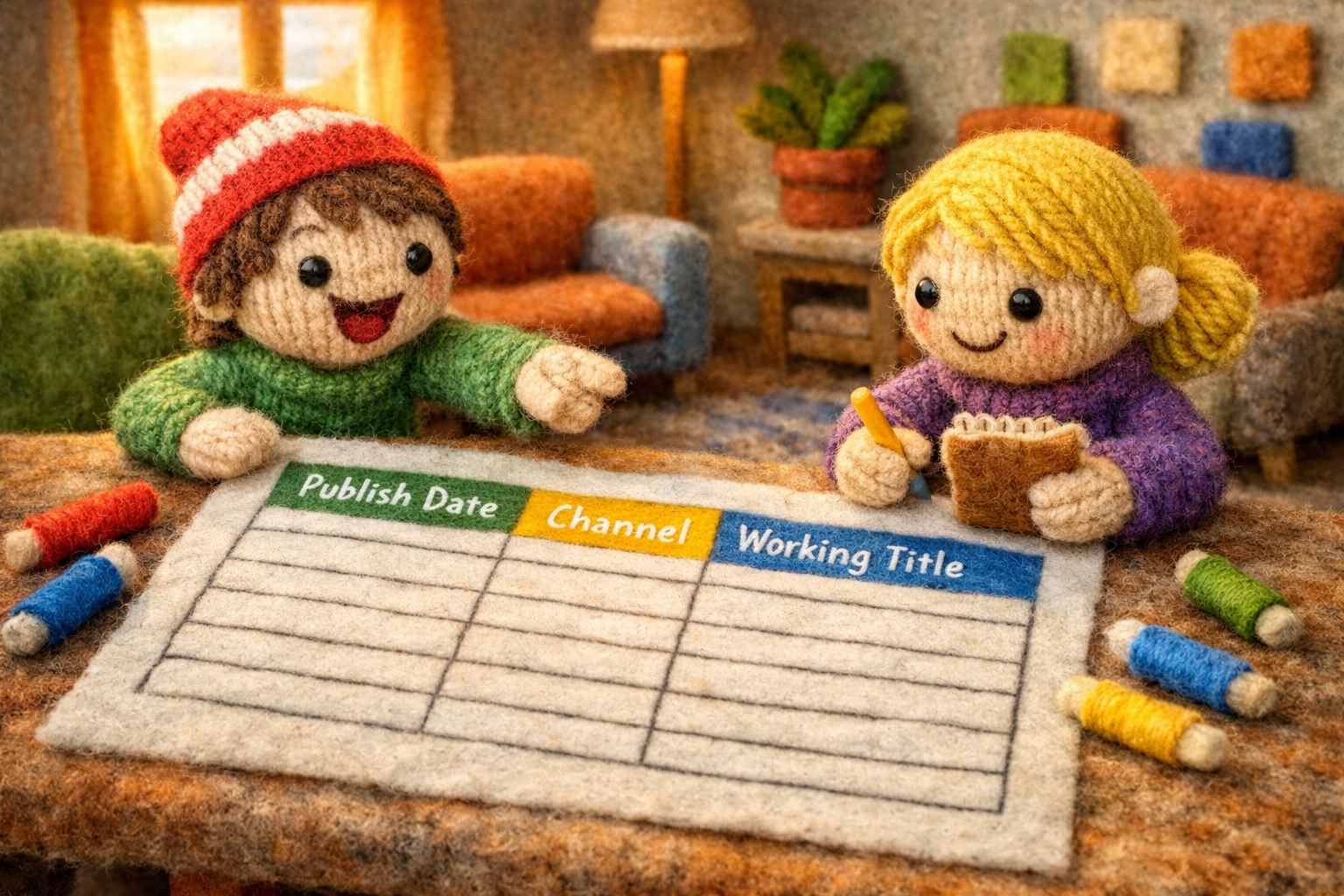
- Publish date: the target date the content goes live
- Channel: where it will be published, such as blog, email, social, partner, webinar
- Content type: the format, such as guide, case study, landing page, newsletter
- Working title: a clear placeholder title that can evolve
- Primary keyword or topic: the main search query or topic focus for the piece
A primary keyword is the main search query you want one page to rank for; it guides the page’s topic, headings, and on-page optimization. - Goal and CTA: what the content should achieve and the action you want the reader to take
- Owner: one person accountable for moving the item forward
- Status: a standard workflow label such as Drafting or In Review
Status in a calendar is a standardized label that tells the team where a content item is in the workflow (for example, Drafting, In Review, Approved). - Priority: a simple scale, such as High, Medium, Low
- Links: one link to the working doc and one link to the live URL after publishing
Then add optional columns only if they reduce back-and-forth:
- Persona or audience: who it’s for, in plain language
- Funnel stage: awareness, consideration, decision, or your own model
- Campaign tag: a label that lets you group items by launch or initiative
- Repurpose notes: what to spin off into social, email, or updates
- Creative needs: images, screenshots, examples, approvals needed
One more distinction matters: calendar vs. backlog. Your calendar is the scheduled plan for the near term. Your backlog is the idea bank and future candidates. Keeping both prevents you from either planning too far ahead or running out of ideas.
Finally, set a clear SSOT rule: this sheet is the truth for planning and status. Your writing lives in docs, but your commitments live in the calendar.
How do you set up a Google Sheets content calendar template in 20 minutes?
You can set up a clean, durable Google Sheets content calendar in one short session if you focus on structure first and formatting second. The aim is to build a sheet that encourages consistent updates.
What to do/decide: Build a three-tab spreadsheet and standardize your dropdown fields.
Here's a detailed walkthrough that demonstrates how to set up your Google Sheets content calendar step by step:
How to do/decide:
-
Create a new Google Sheet and add three tabs
- Backlog: ideas and candidates not yet scheduled
- Calendar: scheduled items for the next four weeks
- Settings: controlled lists for dropdowns and rules
-
In Settings, create your controlled lists
- Status list, such as Backlog → Brief ready → Drafting → Editing → Approved → Scheduled → Published → Repurpose
- Channels list, such as Blog, Email, LinkedIn, YouTube, Webinar
- Content types list, such as How-to, List, Case study, Comparison, Landing page
- Owners list, the names of your team members and any regular freelancers
-
Add dropdowns to enforce consistency
Use data validation so each row uses the same status names and channel labels. This keeps filters and reporting reliable. Google provides a straightforward walkthrough for Google Sheets data validation and dropdown lists. -
Make the Calendar tab easy to scan
- Freeze the header row
- Turn on filters
- Use a standard date format across the sheet
Consistent dates prevent sorting errors and “mystery deadlines.”
-
Use conditional formatting for visibility
- Color-code statuses so you can spot Drafting, Editing, and Approved at a glance
- Highlight overdue items where the due date is in the past and the status is not Published
-
Adopt a one-row-per-content-item rule
Each content item gets exactly one row in the Calendar tab. If you need subtasks, use a “Next action” and “Notes” field rather than creating duplicate rows that drift out of sync.
What to verify:
- Status, Channel, Type, and Owner fields are dropdowns, not free text
- Everyone uses the same date format and the same status labels
- Filters work cleanly because your entries are standardized
- Each content item has one row and one owner, so nothing gets duplicated
How do you choose the best platform to create a content calendar (Sheets vs Excel vs tools)?
The best platform is the one your team will update consistently. For most small marketing teams, that usually means a shared spreadsheet with real-time collaboration and low friction.
What to do/decide: Choose the platform based on collaboration needs, version control, and workflow complexity.
How to do/decide:
Use these decision factors:
- Collaboration: Can multiple people edit at once without conflicts?
- Version control: Do you end up with multiple copies and mismatched edits?
- Ease and speed: Can someone update the status in 10 seconds?
- Automation: Do you need advanced approvals or notifications?
- Reporting: Do you need dashboards and workload views, or simple filters?
- Stakeholder visibility: Can non-marketers view progress without getting lost?
Why Sheets is usually best for small teams:
- It supports real-time collaboration, so the calendar stays current.
- Sharing is simple, which reduces “I can’t access it” delays.
- It’s flexible enough to fit blog content, email, and social in one SSOT.
When Excel or a Microsoft-first approach can be a better fit:
- Your organization is standardized on Microsoft storage and permissions.
- You need stronger offline-first workflows.
- Your IT policies restrict Google sharing outside the organization.
When a dedicated content workflow system is worth considering:
- You have complex approvals, such as legal or compliance review.
- You manage many channels and a high publishing volume.
- You need structured intake forms, advanced permissions, or cross-team reporting.
What to verify:
- Your platform choice matches your reality, not an ideal future process
- Everyone who needs to update the calendar can do it easily
- You can keep one SSOT without duplicate calendars in other systems
- Your setup supports the next four weeks, not just a “perfect” template
How do you map goals and themes before you schedule any content?
You map goals and themes by deciding what you’re trying to achieve and then creating a repeatable set of topics that support it. This prevents random posting and makes planning easier week to week.
What to do/decide: Pick 1–2 goals, define how you’ll measure them, then choose 3–5 content pillars you can rotate.
How to do/decide:
-
Set one primary goal and one secondary goal
Examples include organic growth, product education, lead generation, or retention. Keep it simple so tradeoffs stay clear. -
Define 1–2 KPIs you will track
Pick metrics your team can observe without complicated reporting. Your KPI should match your goal-for example, organic clicks for growth or demo requests for lead generation. -
Choose 3–5 content pillars
Content pillars are themes you return to repeatedly because they match your product and your audience’s ongoing questions. Examples:- “How it works” education
- Use cases by role or industry
- Comparisons and alternatives
- Implementation and best practices
- Troubleshooting and FAQs
-
Create a simple theme rotation
A rotation keeps your output balanced. For example, if you publish one core piece per week, rotate across pillars so you don’t overproduce one theme and neglect another. -
Add lightweight campaign planning
Add a campaign tag column. It lets you batch work and align content to launches without turning your calendar into a complicated project plan.
If part of your workflow includes quick fact-finding, you may want to compare Perplexity AI vs ChatGPT for fast cited research before you finalize your briefs.
What to verify:
- Your goals are specific enough to guide decisions about what to publish
- Your pillars clearly connect to what your audience asks and what you offer
- Your rotation looks balanced over four weeks, not just one week
- Your campaign tags are consistent, so you can filter and batch later
How do you build a realistic content workflow with owners, due dates, and statuses?
You build a realistic workflow by assigning one accountable owner per item, defining a few clear stages, and adding lead time between “draft due” and “publish date.” The aim is fewer bottlenecks, not more process.
A content pipeline is the set of stages a piece of content moves through from idea to published. A simple pipeline is often enough for a small team: Idea → Drafting → Editing → Approved → Scheduled → Published.
What to do/decide: Define roles, set due dates that match your lead time, and standardize statuses with clear “exit criteria.”
How to do/decide:
-
Assign roles, even if one person wears multiple hats
Typical roles include:- Creator: writes or produces the content
- Editor: improves clarity, structure, and SEO alignment
- Approver: final sign-off, sometimes a founder or product lead
- Publisher: schedules and posts, then checks formatting
In a small team, the same person can cover two or three roles. That’s fine. What matters is that the handoff is explicit.
-
Add lead time using internal due dates
Instead of only tracking “Publish date,” add:- Draft due date
- Edit due date
- Approval due date
- Publish date
This makes delays visible early, when they’re easier to fix.
-
Use standardized statuses from your Settings tab
A strong default is: Backlog → Brief ready → Drafting → Editing → Approved → Scheduled → Published → Repurpose. -
Define what “done” means for each status
This is where most calendars break. For example:- Brief ready means the outline and primary keyword are set, and the owner is assigned
- Editing means the draft exists and is ready for review, not “I started writing”
- Approved means all requested changes are complete and the piece is ready to schedule
-
Add a Next action field
Next action is a short instruction, like “Editor to review intro” or “Owner to add screenshots.” It prevents the classic stall where everyone assumes someone else is moving it forward.
What to verify:
- Every row has one owner who is accountable for progress
- Due dates exist before the publish date, so you can see schedule risk
- Status labels are used consistently, with clear exit criteria
- Every in-progress item has a Next action and a named person
How do you fill the next 4 weeks of your content calendar from a backlog (without burnout)?
You fill the next four weeks by matching your plan to your capacity, then scheduling the highest-impact items with a small buffer. A calendar that ignores time and energy is the fastest way to fall behind.
What to do/decide: Calculate realistic capacity, pick core items first, then schedule distribution and repurposing alongside them.
How to do/decide:
-
Start with capacity math
List the people who will contribute and estimate the hours they can consistently give to content each week. This isn’t about squeezing more in. It’s about choosing a cadence you can maintain. -
Pick your core pieces for the month
A practical default for a small team is one core piece per week, then distribution content that supports it. If that’s too much, do two core pieces per month and keep distribution lightweight. -
Pull from backlog using priority and theme balance
Filter your backlog by priority, then sanity-check your theme rotation. This prevents four weeks of near-identical topics. -
Keep a buffer for timely content
Leave space for something urgent, such as product updates or news-driven posts. Your calendar should feel stable, not brittle. -
Batch similar work
Group tasks to reduce context switching:- Research and outlining block
- Drafting block
- Editing block
- Creative or screenshot block
-
Plan distribution at the same time
Add 3–5 smaller distribution entries tied to the core piece. For example, if you publish a guide, schedule a newsletter mention and a few social posts that pull different angles from the same content.
What to verify:
- The plan fits your available hours and skills, not wishful thinking
- Each week has a balanced theme mix and clear priority items
- You have buffer space so one surprise doesn’t wreck the month
- Distribution content is attached to core content, not an afterthought
How do you run a weekly content calendar meeting that actually saves time?
A weekly content calendar meeting saves time when it’s short, focused, and ends with clean assignments. You’re not “talking about content”-you’re updating the SSOT and removing blockers.
What to do/decide: Run a 15–30 minute weekly review with a fixed agenda and sheet-based decisions.
How to do/decide:
Use this simple agenda:
-
Confirm what shipped last week
Celebrate quickly, then capture any lessons in one sentence. Did a piece take longer than expected? Did approvals slow it down? -
Unblock stuck items
Filter your sheet for statuses like Editing and Approved. Ask one question per item: what’s the next action, and who owns it? -
Lock next week
Confirm owners and internal due dates for anything publishing next week. If something is at risk, decide immediately:- Move it to a later date
- Reduce scope
- Swap in a backlog item that’s easier to ship
-
Update the calendar live
The meeting only works if the sheet gets updated in real time. When the meeting ends, the calendar should reflect reality.
For sharing and access, ensure the right people have the right permissions. If your setup includes external collaborators, review Google Drive sharing permissions so you avoid surprise access issues right before deadlines.
What to verify:
- The meeting stays within 30 minutes and focuses on decisions
- Every in-progress item ends with a Next action and a named owner
- Dates and statuses are updated during the meeting, not “later”
- Next week’s publish commitments are realistic and agreed upon

How do you keep your content calendar accurate with simple QA and reporting?
You keep your content calendar accurate by adding a lightweight QA checkpoint for “Published” and a monthly review that updates priorities. The objective is trust. When the calendar is trustworthy, people keep using it.
What to do/decide: Add a published checklist, capture the minimum performance notes, and run a monthly refresh.
How to do/decide:
-
Add a Published checklist field
This isn’t a full audit. It’s a quick “did we do the basics?” check. Examples:- Live URL added to the row
- Internal links added where appropriate
- Images and alt text included
- Meta title and meta description drafted and implemented
- CTA present and aligned to the goal
You can format this as a simple Yes/No dropdown or a short checklist-style text field if your team prefers.
-
Add reporting columns that don’t create busywork
Keep it simple:- Live URL
- Last updated date
- Performance snapshot notes, such as “ranking improves,” “high conversion,” or “needs update”
You’re building a feedback loop, not a full analytics system inside a spreadsheet.
-
Run a monthly review
Once a month, scan what you published and decide:- What to double down on
- What to pause
- What to update and republish
- Which backlog ideas to refine or drop
-
Use light automations only if they help
Optional reminders can be helpful, but they’re not required. If reminders create more noise than value, skip them and rely on your weekly meeting.
What to verify:
- Every published item has a live URL in the calendar
- Published checklist items are completed consistently, not skipped
- Your monthly review results in clear backlog changes and new priorities
- The calendar reflects reality, so stakeholders trust it
6 common mistakes when you create a content calendar (and how to fix them)
Most content calendars fail for predictable reasons. Fixing them usually comes down to simplifying, clarifying ownership, and maintaining a weekly rhythm.
-
Mistake: Too many columns
- Consequence: the calendar becomes a maintenance burden
- Fix: keep minimum viable fields in the Calendar tab and move “nice-to-have” data to optional columns or a separate tab
-
Mistake: Unclear statuses
- Consequence: work gets stuck because “In progress” can mean anything
- Fix: define a small set of statuses and add exit criteria so everyone agrees what “Editing” or “Approved” really means
-
Mistake: Planning too far ahead in detail
- Consequence: constant rework as priorities shift
- Fix: plan four weeks ahead in detail, then keep longer-term planning at a high level
-
Mistake: No ownership
- Consequence: deadlines slip because accountability is shared and therefore unclear
- Fix: assign a single owner per row and use a Next action field to define who does what next
-
Mistake: The calendar does not reflect reality
- Consequence: the team stops using it because it feels unreliable
- Fix: update live during a weekly meeting and treat the sheet as your SSOT
-
Mistake: Separating distribution planning from core content
- Consequence: content underperforms because it doesn’t get promoted consistently
- Fix: bundle distribution entries with each core piece so promotion is scheduled, not hoped for
Content calendar FAQ (Google Sheets, Google templates, and Microsoft options)
What should be included in a content calendar?
Include the fields that make ownership, timing, and execution unambiguous: publish date, channel, content type, working title, primary keyword or topic, goal and CTA, owner, status, priority, and links to the draft doc and live URL. If you add more, make sure each extra column reduces confusion rather than adding admin work. For a quick reference, revisit the “minimum viable columns” list in the first section above.
What is the best platform to create a content calendar?
For most small marketing teams, Google Sheets is the best starting platform because it’s collaborative, easy to share, and fast to update. Excel can be a better fit if your organization is Microsoft-first, needs offline access, or has strict IT requirements that make Google sharing difficult. A dedicated workflow system can be worth considering if approvals and volume are complex enough that a spreadsheet becomes hard to manage.
Does Google have a content calendar template?
Google’s template offerings can change over time, and availability can vary by account type and region. In practice, you have two reliable options: start from a blank Sheet using the three-tab setup in this guide, or browse the Google Sheets template gallery from within Sheets and adapt a calendar-style template. The three-tab approach often wins because it’s built around your workflow rather than a generic layout.
Does Microsoft have a content calendar?
Microsoft offers a large template ecosystem across its Office apps, including calendar-style and planning templates that can be adapted for content. A practical place to start is the Microsoft Excel templates gallery, then customize the columns to match the “minimum viable fields” from this guide. If your team already lives in Microsoft tools daily, this can reduce friction.
How should a small team handle sharing, permissions, and version control?
Pick one SSOT sheet and treat it as the authoritative calendar. Give edit access only to people responsible for updating statuses and dates, and give view access to stakeholders who just need visibility. Avoid copying the sheet to make “my version,” because that immediately breaks version control. If you work with contractors, use limited sharing and keep your Settings tab protected so dropdown lists don’t get accidentally changed.
Is a content calendar worth it if we only publish occasionally?
Yes, because the calendar isn’t only for high-volume teams. It’s a coordination tool. Even if you publish twice a month, a calendar prevents last-minute scrambling, clarifies owners, and makes it easier to reuse ideas. The lighter your cadence, the more important it is that each piece ships smoothly and gets distributed well.
What if we cannot stick to the calendar?
That usually means one of three things: the plan is too aggressive, statuses are unclear, or ownership is fuzzy. The fix is to reduce scope for the next four weeks, tighten your workflow statuses, and run the short weekly meeting that updates the sheet in real time. Consistency beats intensity. A calm, sustainable calendar typically outperforms an ambitious plan that collapses after two weeks.
Ready to create your content calendar? Here’s the simplest next step
Open Google Sheets and build your SSOT with three tabs: Backlog, Calendar, and Settings. Add dropdowns for status, channel, type, and owner, then schedule the next four weeks based on your real capacity. Keep it accurate with a short weekly review where you update the sheet live.
If you want an easier path to consistent publishing once your calendar is in place, you can also explore Outrank to grow organic traffic on auto-pilot and compare it with your current workflow to see what fits your team best.